“Oh, It’s complicated!”
– Most of us
This is the story of that everyday you, fallen in love with the linux for it’s serene beauty, robust handsomeness or maybe you wanted to flirt with flair and flavor of linux.. you know the reasons!
We evolved from the humble, shy black-background-green-text beginnings to sassy, flirtatious, almost seductive linux flavours. Oh boy! that relation has came too far.
From geeking out onto the terminals, to theming the heck out of our linux systems to make them look like the sci-fi spaceship console or punk garage band advertisement whatever.. we did it all. As we progressed so did our insecurities and those linux angels decided to tighten the screws and In comes the “Password Complexity”.
This thing wasn’t there when we (At least I) started out. In those olden days we could simply install ubuntu and can login with out standard 12345 password and it didn’t complain, uh huh! not a word. You get into system and do your ls, cp, mv.. oh those days.. how I miss them. We humans are notorious for our self-sabotaging ways, so we did here too. We lost the pleasure of 12345 in ubuntu because bad apples between us wanted the piece of every open cake they found.
So, call this my random rant, my answer to your question of why can't I login with my CORRECT password?


Would you look at that aberration? Turns out no matter what you do, it won’t let you in! Apparently ubuntu strengthened it’s security to avoid regular, dictionary passwords. So what did I do? like a nice human the first thought was RESET. Reset the damn password. What option I had? (Refer the images for clarity from hereon)
This was Oracle VirtualBox VM, I went ahead and tried to get into GRUB to reset the password (I mean i remember settting it 12345 but hey Self doubt what can I say!) BUT..

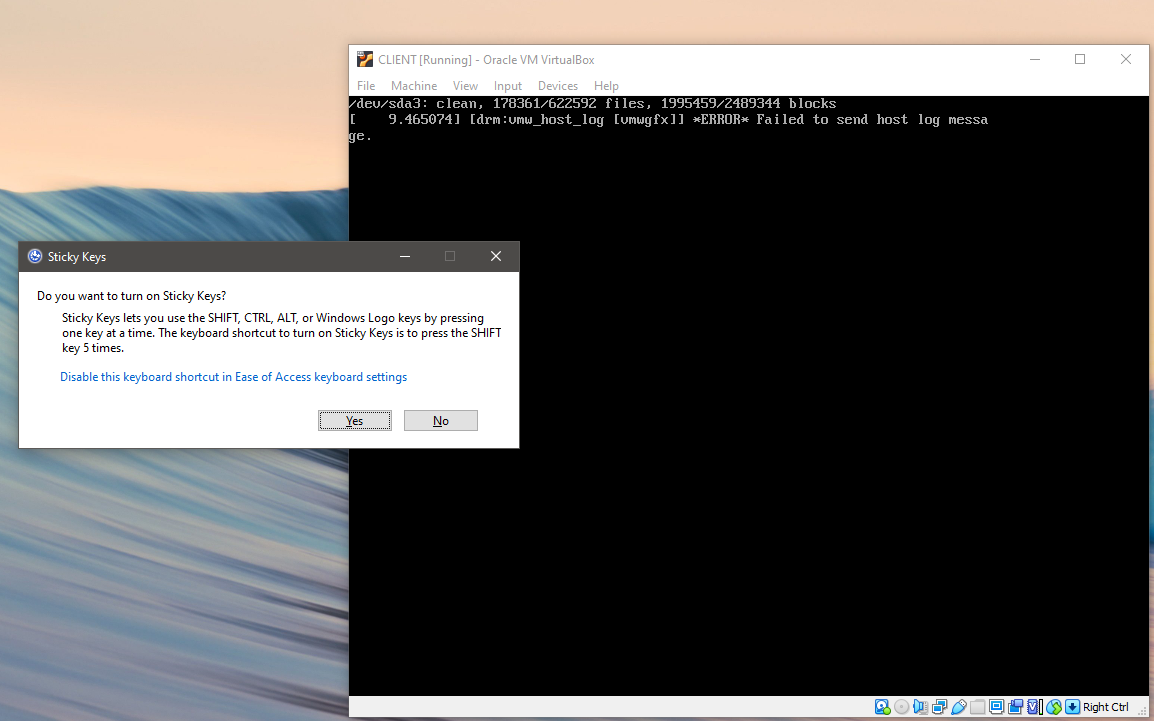
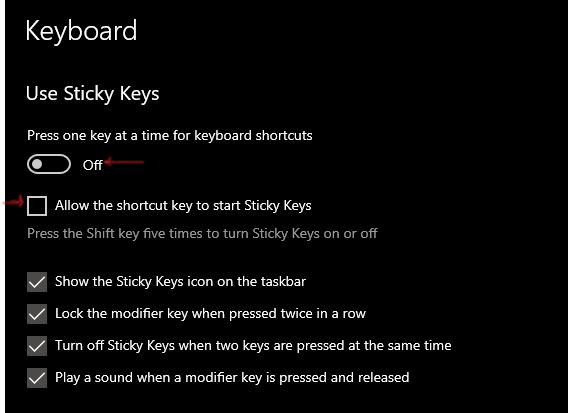
So, If you have Windows. Which you probably have, just statistics you know, you should get those sticky keys disabled. You see what happened there? You got to press SHIFT key when you restart the ubuntu to get into the menu. If you have sticky keys enabled, virtual box will skip over to startup, since your windows host will ping you with sticky keys prompt. So just disable it. It’s easier in windows 8-10-11, you search them. Just press windows key then type Sticky keys you should find your setting. Turn it off.
That aside, you should now be able to get into GRUB MENU by pressing SHIFT key repeatedly as your VM reboots. Choose to become a god for a little second! Go to Advanced options for ubuntu , scroll down to select root

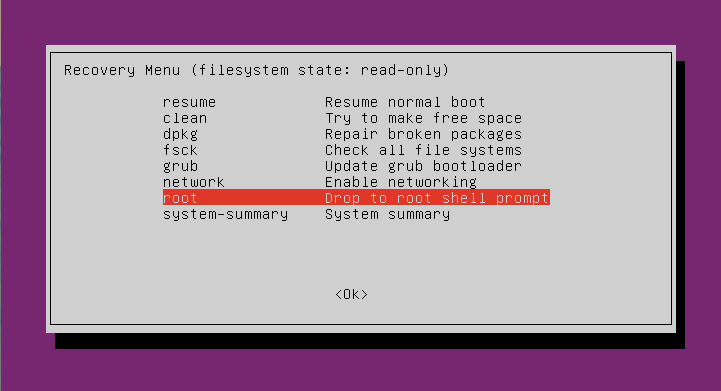
This should drop you into the shell. Type following to reset your user password
$ mount -o rw,remount /
$ passwd

You may choose to reset root password by not mentioning the user
$passwd
New password :
In any case if you get ANY warning, you are not getting in via login screen. So what to do?
Set your password to meet complexity requirements. (It’s good practice to meet these requirements while setting password at installation phase!)
- [1] Use at least 6 characters (8 preferred)
- [2] Use at least 1 uppercase alphabet.
- [3] Use at least 1 number.
- [4] Use at least 1 symbol.
- [5] It should pass dictionary check (Shouldn’t be easy to guess)

If you do everything right. You are in. You should be on Desktop having fun. But you might be very much like me, forgetful and lazy. And may want to circumvent this security for ease. I got you covered!
Apparently, the Basic password entropy (refer) that’s what it’s called, is controlled via /etc/pam.d/common-password file, the line
password [success=1 default=ignore] pam_unix.so obscure sha512
controls the length of password you need to get into system successfully. I mean my anti-virus eats around quarter of memory, plus I am behind firewall, plus this is VM, plus hell I am Lazy, Short password?? YES PLEASEEE! 123 done, Heck 1 and done.
What to do?
This entropy check is controlled by pam_unix module, if you man pam_unix and read some you can understand the above line of code/setting.
 minlen=n
       Set a minimum password length of n characters. The default value is
       6. The maximum for DES crypt-based passwords is 8 characters.

   obscure
       Enable some extra checks on password strength. These checks are
       based on the "obscure" checks in the original shadow package. The
       behavior is similar to the pam_cracklib module, but for
       non-dictionary-based checks.
I just added what I thought explains the setting best. Reading this we now know we can simply remove the word obscure and add minlen=1 at end of this line.Now it should look like
password [success=1 default=ignore] pam_unix.so obscure sha512 minlen=1
And you are all set. This is bit of a work but if you are lazy like me, and are at home, NOT IN PRODUCTION environment. This should help you get set and at ease for foreseeable future! Now you can set whatever password you like.
I hope the security-nazis would spare me from nag of how this is bad practice. But hey some of us just want to Home-lab and learn and have fun.
This was a long-long article. I know. But what I hope is, when someone needs to reset password, and or needs to reset complexity, this shall be the one stop shop.
Until next time, see y’all !

 THE NUCLEAR GEEKS
You must be logged in to post a comment.